
2 Prompts = Full PowerPoint Presentation
A PowerPoint Presentation in 30 Seconds with 2 Prompts

I used to spend hours building decks.
Formatting slides. Aligning text boxes. Tweaking fonts. Dragging images pixel by pixel.
Last week I made a full presentation in 30 seconds. Two prompts. Done.
Here’s exactly how I did it, and how you can too.
Step 1: Open PowerPoint
You don’t need a paid subscription for this.
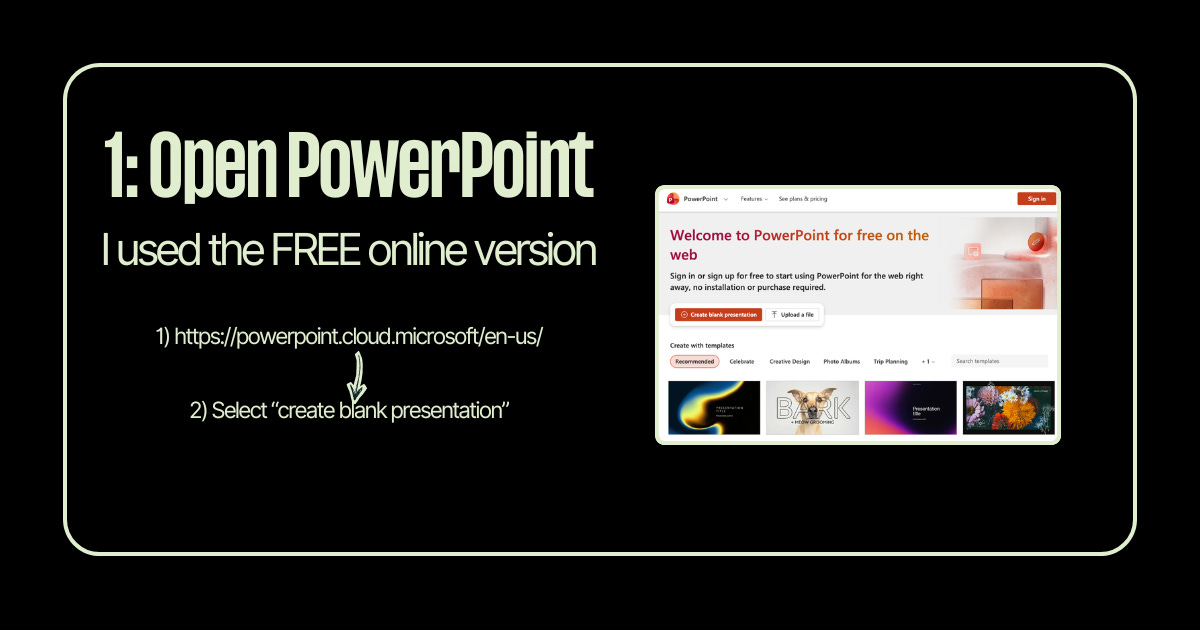
I used the free online version of PowerPoint at powerpoint.cloud.microsoft. Sign in with a Microsoft account (also free), and click “Create blank presentation.”
That’s it. No downloads. No software. Just a browser.
Step 2: Install Claude
This is the part most people don’t know exists yet.
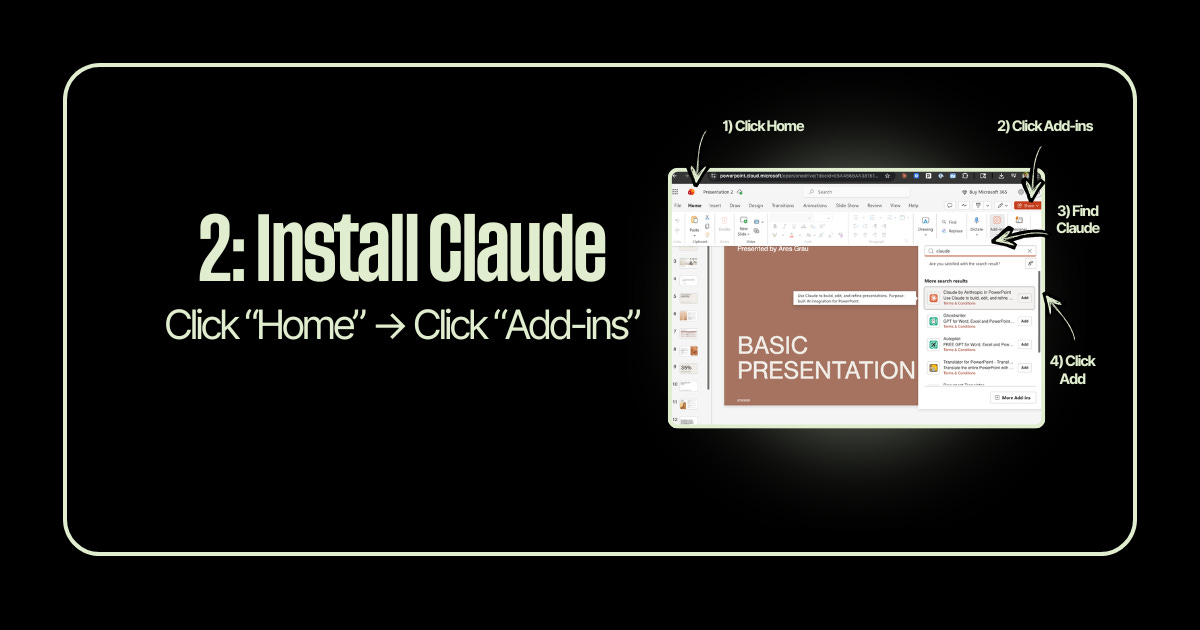
Go to the Home tab, click “Add-ins,” search for “Claude,” and hit Add. Anthropic built a native integration that lives right inside your PowerPoint toolbar. It’s not a workaround or a hack, it’s an official add-in.
Once it’s installed, the Claude panel opens on the right side of your screen.
Step 3: Log In
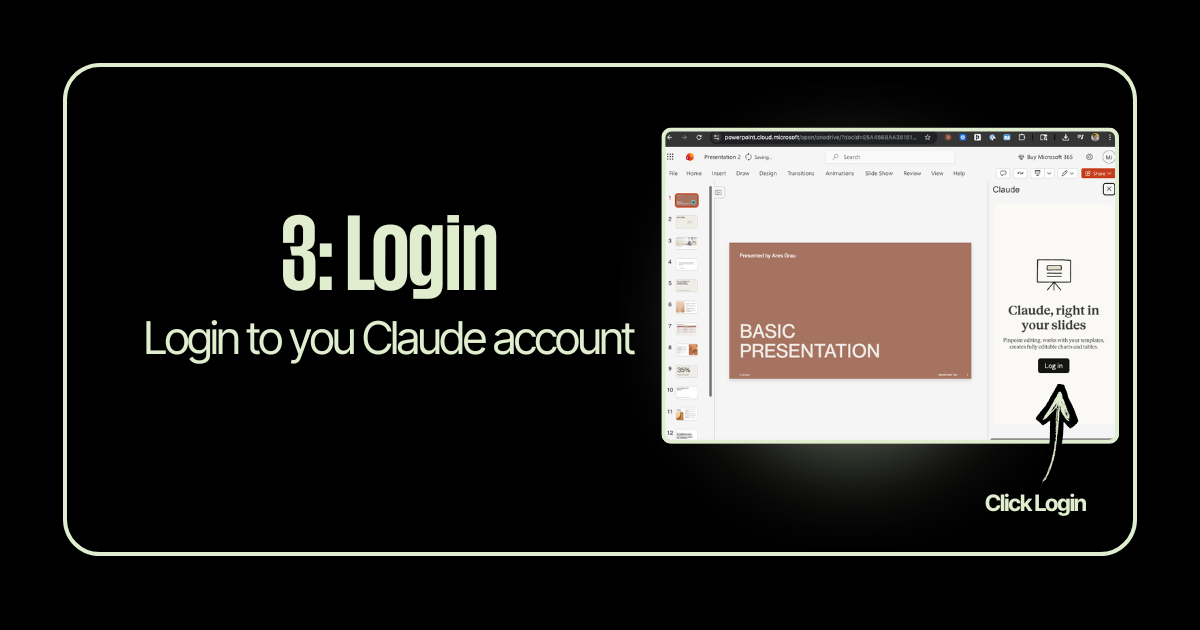
Click “Log in” inside the Claude panel on the right. It’ll ask you to sign in to your Claude account. If you have a Pro subscription, you’re good to go.
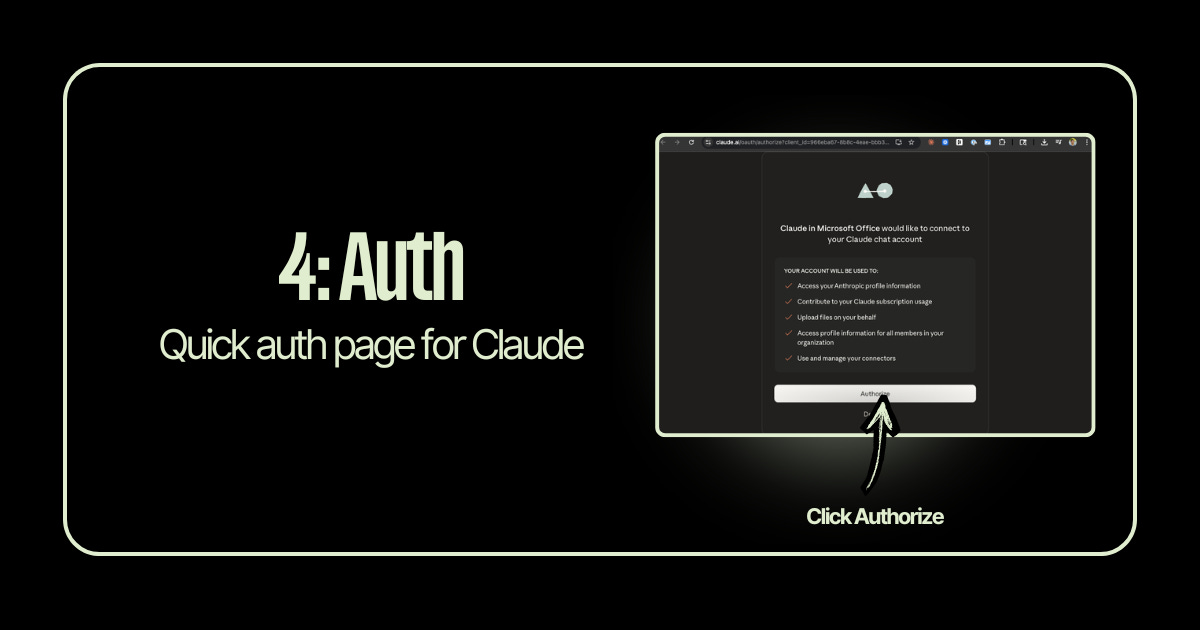
Step 4: Authorize
A quick authorization page will pop up asking you to connect Claude to Microsoft Office. Click “Authorize” and you’re linked up.
The whole setup from Step 1 to Step 4 takes about 60 seconds the first time. After that, Claude is just there every time you open PowerPoint.
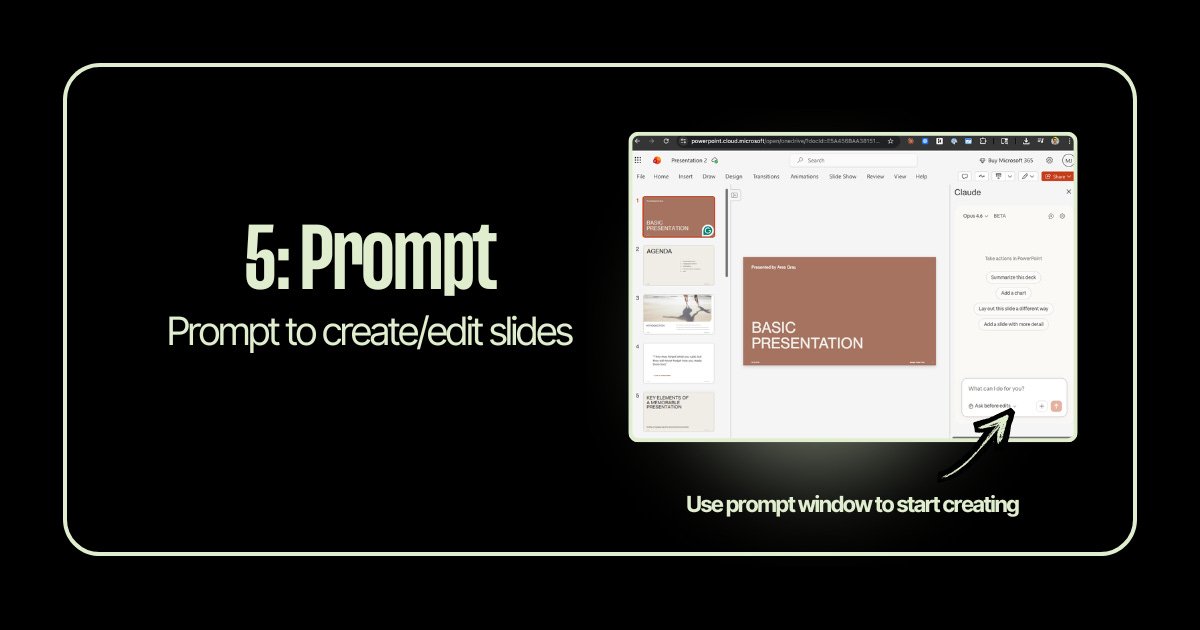
Step 5: Start Prompting
Now the fun part.
You’ll see a prompt window at the bottom of the Claude panel. This is where you tell Claude what to build. You can create slides from scratch, edit existing ones, add charts, restructure layouts all from that one text box.
Here’s an example prompt to get started:
“Create a 7-slide presentation about [YOUR TOPIC]. Include a title slide, an agenda slide, 4 content slides with key points, and a closing slide with a call to action. Use a clean, modern layout.”
Claude generates the slides directly inside PowerPoint. Not in a separate tool. Not as a file you have to import. Right there in your deck.
Step 6: Upload Examples
This is where it gets powerful.
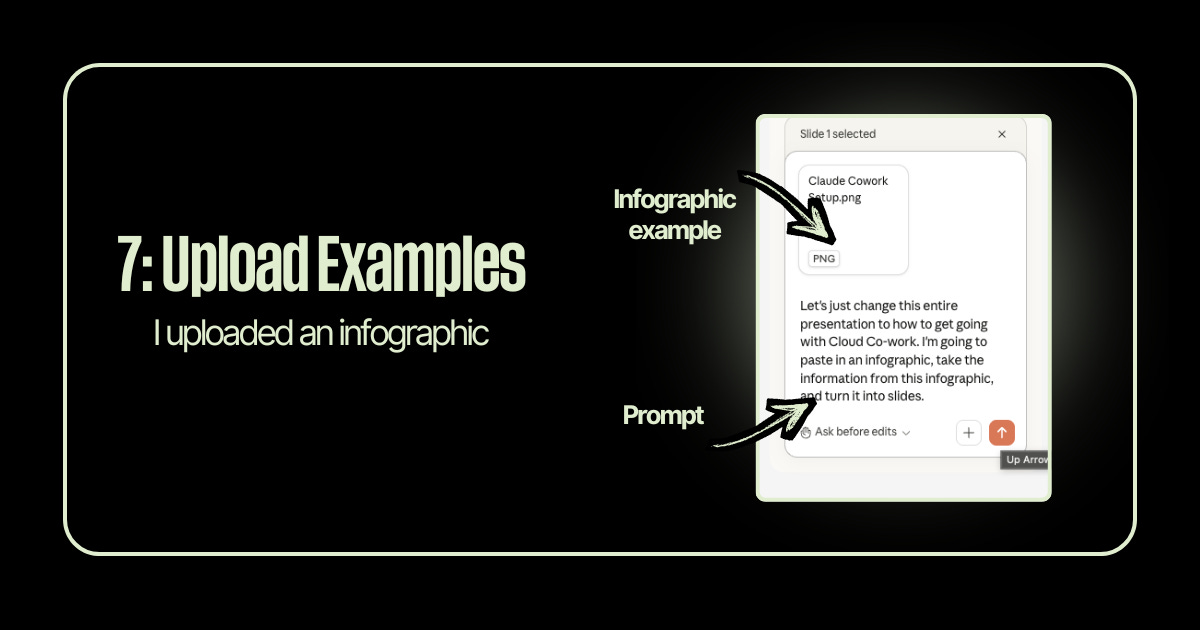
You can upload images, infographics, or reference materials directly into the prompt window. Claude will read them and turn the content into slides.
I uploaded an infographic and used this prompt:
“I’m attaching an infographic. Take the information from this infographic and turn it into a full slide deck. Each major section of the infographic should become its own slide. Keep the content clear and concise.”
That’s prompt number two. Claude read the infographic, pulled out the key information, and built the entire deck around it.
Step 7: The End Result
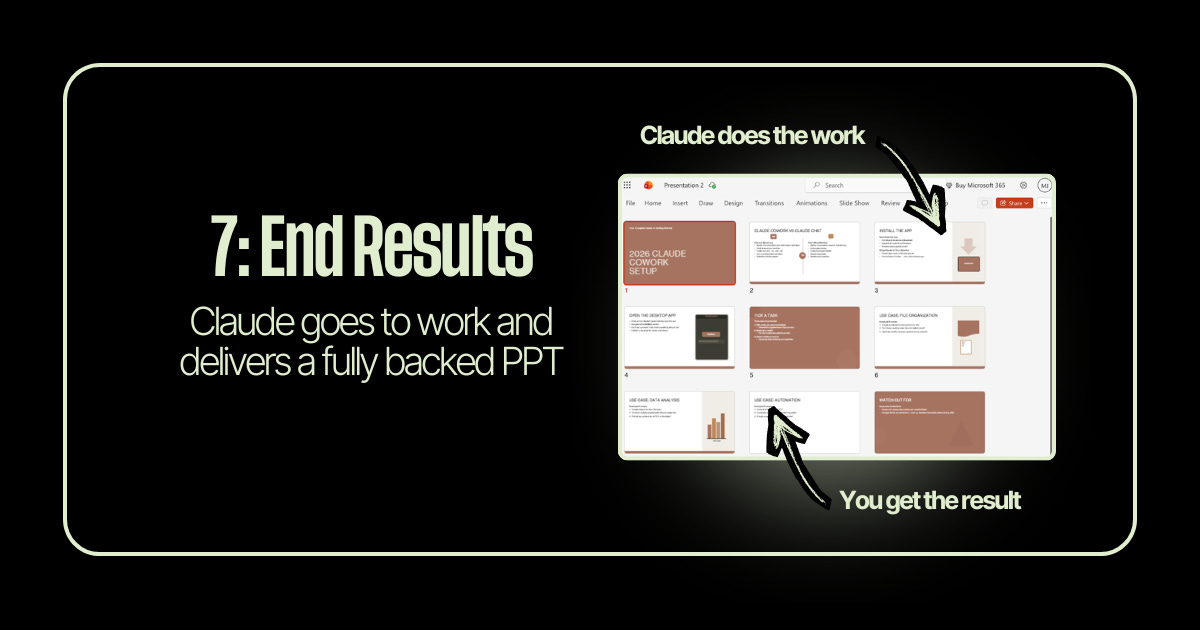
Claude went to work and delivered a fully built presentation. Title slide. Content slides. Structured layout. All pulled from the infographic I uploaded.
From there you can tweak the design, adjust colors, or ask Claude to refine specific slides. But the heavy lifting is done.
Two prompts. Thirty seconds. A complete deck.
Why This Matters
Presentations aren’t going away. But the hours we spend building them should.
If you’re pitching a client, prepping for an all-hands, or putting together a workshop this changes the math on how you spend your time.
Stop building slides. Start building ideas.
Claude handles the rest.
Happy Saturday
MJ ✌️
I'll have to try Claude. I've used Microsoft co-pilot for PPT presentations and could never get it right even with their native Microsoft tools.