
Setup Claude, Finish Real Work in 5 Minutes
Install it, send one prompt, and walk away with a task already done. No credit card. No jargon.


You’ve heard about AI for two years now. The hype. The threads. The guy on LinkedIn (which is sometimes me) screaming that everything has changed.
This is the issue where you quietly skip all that and just use the thing.
It’s also issue 1 of a series. By the end of it, you’ll go from “I made an account” to running real work with AI: writing, research, building actual stuff, the kind of tasks that give you hours back. We’ll take it one step at a time, and every issue builds on the last. No prior experience needed. If you can send a text, you can do all of this.
Today’s job is small and specific. Give me 5 minutes. You’ll make an account, send a real prompt, and get back something you can use right now. A rewritten email. A reply you’ve been dreading. A plan for your afternoon. Then I’ll walk you through the corner of the screen that makes everybody freeze, so you never sit there wondering which button does what.
Coffee’s optional. Let’s go.
First, What Even Is This Thing?
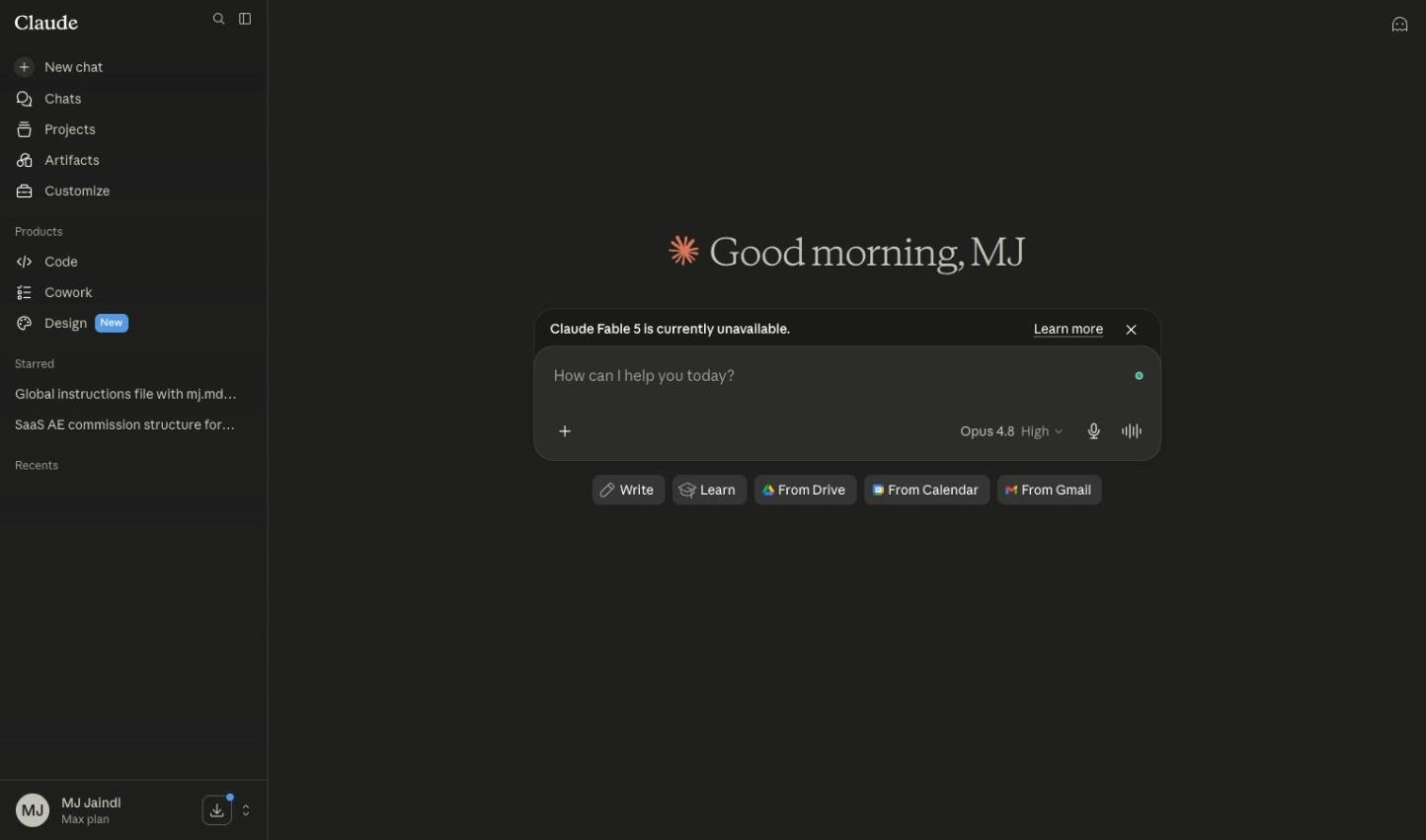
Quick gut check before we click anything, because “AI assistant” means nothing until you’ve used one.
Claude is a chatbot made by a company called Anthropic. You type, it types back. So far, so boring. The part that matters is what it’s actually good at, which is a lot more than answering trivia.
Claude is genuinely great at:
Writing and rewriting. Emails, posts, docs, that thing you’ve reworded nine times.
Thinking through a problem with you. Decisions, plans, pros and cons, “talk me out of this.”
Reading long stuff and telling you what matters. Paste in a contract, a report, a wall of notes.
Explaining anything at the level you ask for. “Explain this like I’m five.” “Explain this like I have a finance degree.”
A few honest limits, so you’re not surprised later:
It’s not a search engine by default. It knows a ton, but for fresh facts (today’s news, this week’s prices) you flip on web search. More on that below.
It can be confidently wrong. It will occasionally state something false with a completely straight face. We’ll cover how to catch that.
It starts each new chat fresh. It remembers everything inside one conversation, but open a brand-new chat and it doesn’t know what you said yesterday. We fix that in issue 4.
That’s the whole mental model. Smart, fast, a little overconfident, incredibly useful once you know how to talk to it. Let’s get you in.
Start in the Browser. Don’t Overthink It.
Skip the download for now. You don’t need it, and I’m not letting an install bar eat your 5 minutes.
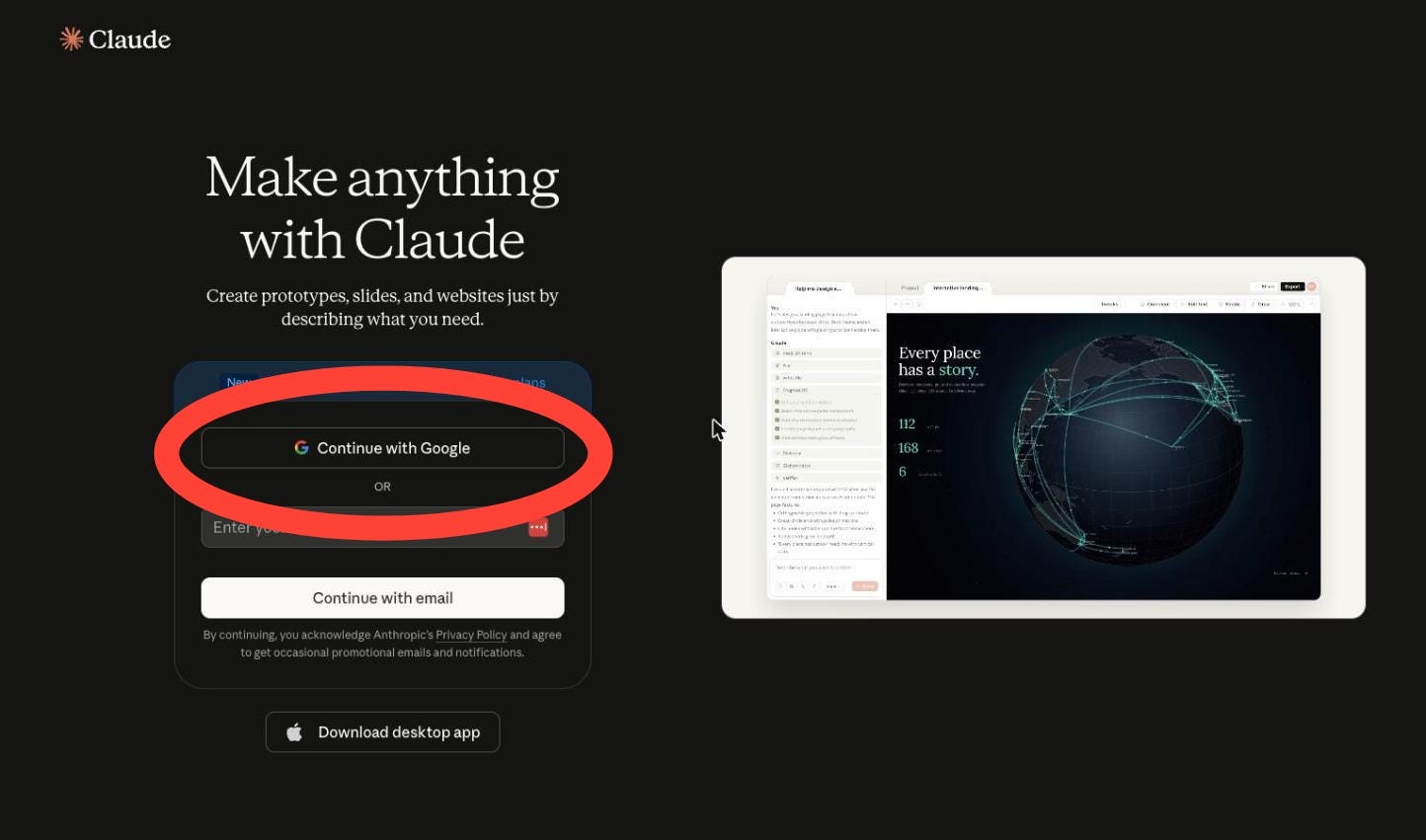
Open a browser and go to claude.ai.
You’ll hit a sign-in screen. Take the fast lane:
Continue with Google. Two clicks, no new password to forget by Thursday.
Continue with email. Type your email, hit Continue, then grab the 6-digit code from your inbox.
If it asks for a phone number, give it one. Anthropic texts you a code. Pop in your first name, accept the terms, and you’re through the door.
That’s the whole signup. It’s free, and nobody’s asking for a credit card. You’ll start on the free plan, which is plenty for everything in this issue. We’ll talk about when it’s worth paying in issue 3, so don’t reach for your wallet yet.
Send Your First Prompt (and Please, Not “Hello”)
Almost everyone signs up and types “hi” like it’s a job interview. The poor thing says hi back, and you both stand there. Skip that. Hand it real work on the first swing.
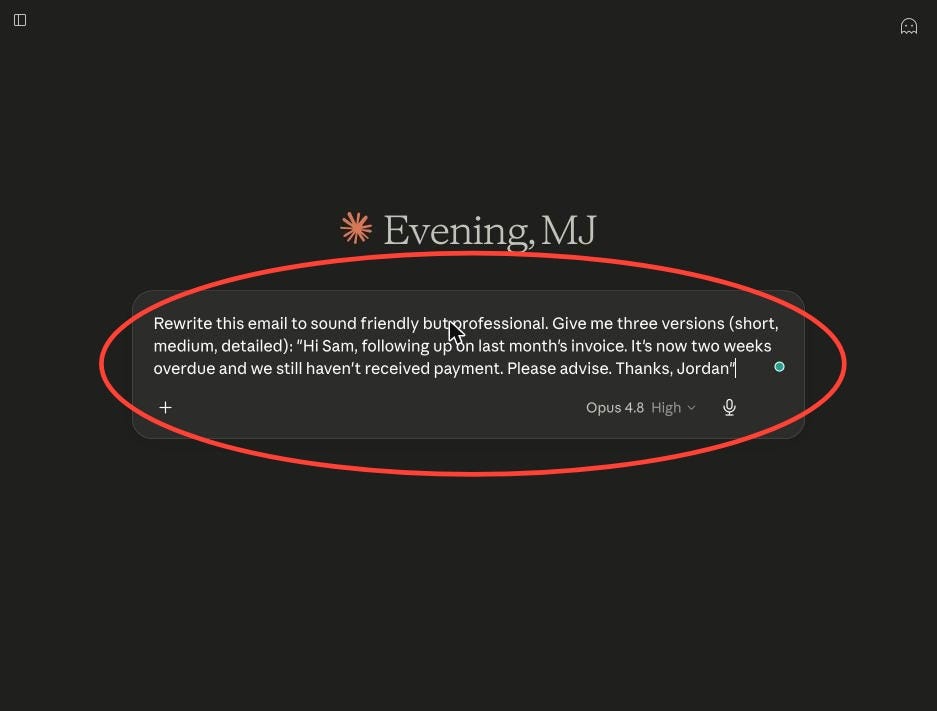
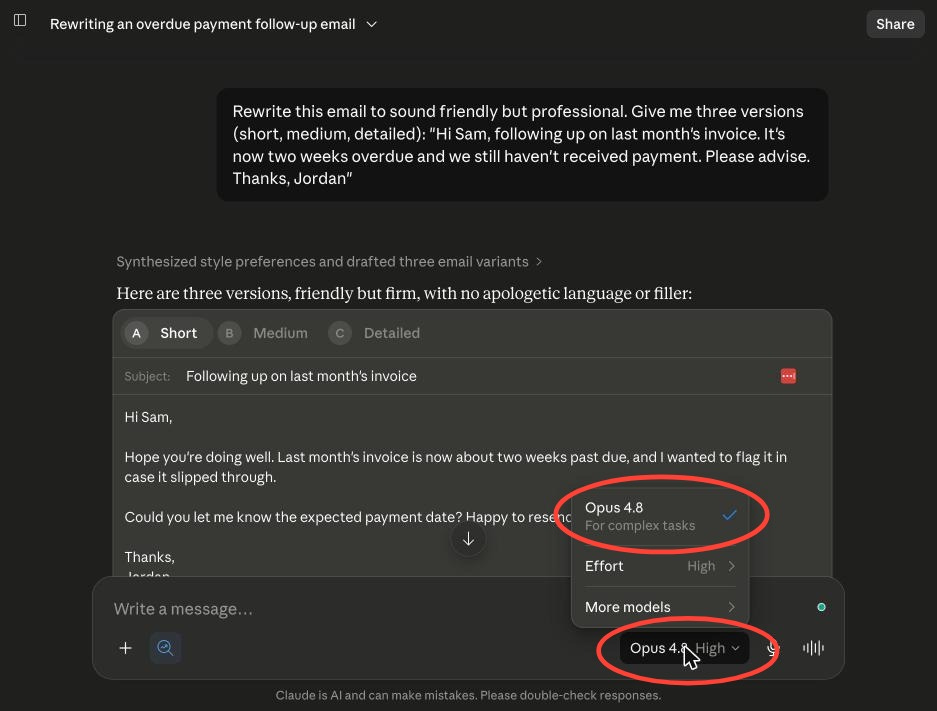
Find an email you’ve been avoiding. Click into the big box at the bottom and paste this:
Rewrite this email to sound friendly but professional.Give me three versions: short, medium, and detailed.
[paste your email here]
Hit Enter, or click the up-arrow (↑).
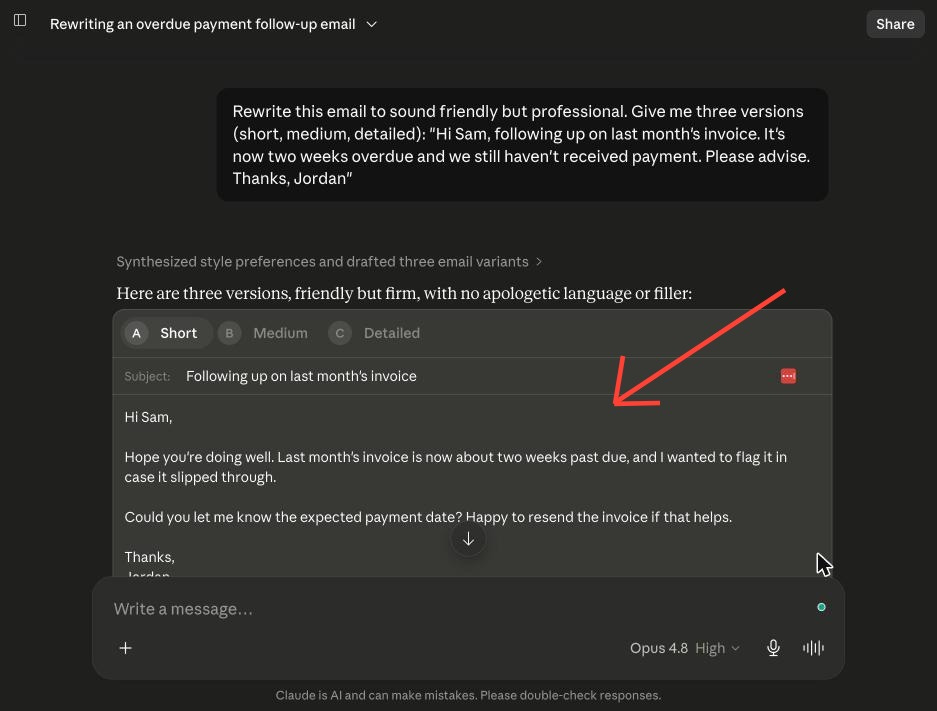
Now watch it write all three in real time. Version 2 a little stiff? Don’t start over like it’s a typo on a resume. Just tell it:
Make version 2 warmer and cut it by half.That little back-and-forth is the whole game. You’re not searching. You’re nudging it until it’s right. We go deep on the nudging in issue 2.
Claude’s reply with the three email versions. Your first finished task. 👇
Don’t Like the Email Idea? Steal One of These.
The email rewrite is just the easy on-ramp. The point is to ask for something you actually needed done today. Pick whichever one sounds like your life and paste it in:
I have chicken, rice, and whatever's wilting in my fridge.Give me three dinner options I can make in 30 minutes.
Plan my afternoon. I have these four things to do: [list them].Tell me the smart order and roughly how long each should take.
Turn these messy notes into a clean summary with action items:[paste your notes]
I need to tell a client we're running two days late.Write it so it's honest, calm, and doesn't sound like an excuse.
Explain [thing you keep nodding along to but don't get]like I'm smart but have never heard of it.
None of these are tricks. They’re just real. That’s the secret nobody puts on a slide: the people getting the most out of AI aren’t using magic words. They’re just asking it to do actual work.
One Thing That Separates a Good Answer From a Great One
Here’s a free preview of issue 2, because it’s too useful to make you wait.
Watch the difference between these two:
Lazy: write a birthday message for my coworker.Better: write a short, funny birthday message for my coworker Dana.She's on my team, loves trail running and bad puns, and we've worked
together for three years. Keep it warm, not corny.
Same task. Wildly different result. The first one gets you a fortune cookie. The second gets you something Dana actually screenshots. All you did was hand over context: who, what, the vibe you want.
That’s the entire skill in one sentence: tell it who it’s for, what you want, and how it should feel. Do that and you’ll already be ahead of most people who’ve been using this for a year.
The Bar at the Bottom, Decoded
Here’s the spot where new folks quietly panic. A row of little icons, zero explanation, and a creeping sense that clicking the wrong one will summon something. So let’s demystify the whole thing. Good news up top: today you touch exactly two.
The box in the middle is where you type. The up-arrow sends. Those two. That’s your whole job today.
Now the rest, left to right:
The “+” button (bottom-left). The door to everything. Attach files, drop in photos, turn on Research, connect your apps. Up to 20 files per chat, 30 MB each. Hoarders, rejoice.
The “/” shortcut. Type a slash for quick commands. A toy for later. Leave it alone today.
The feather icon (Styles). Changes Claude’s writing tone. Also later. We’ll build you a custom one down the road.
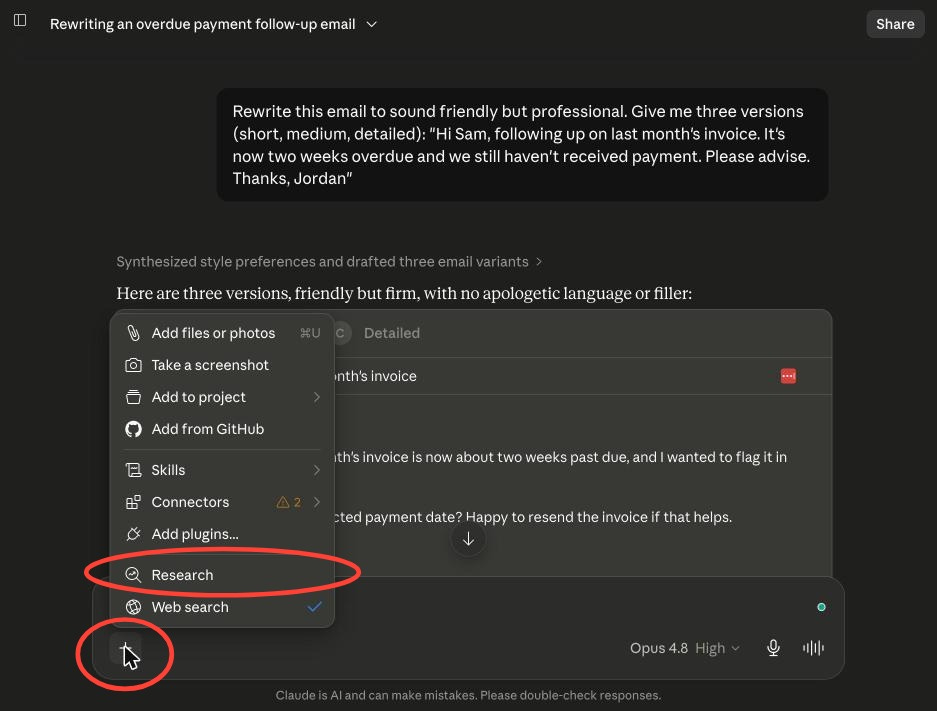
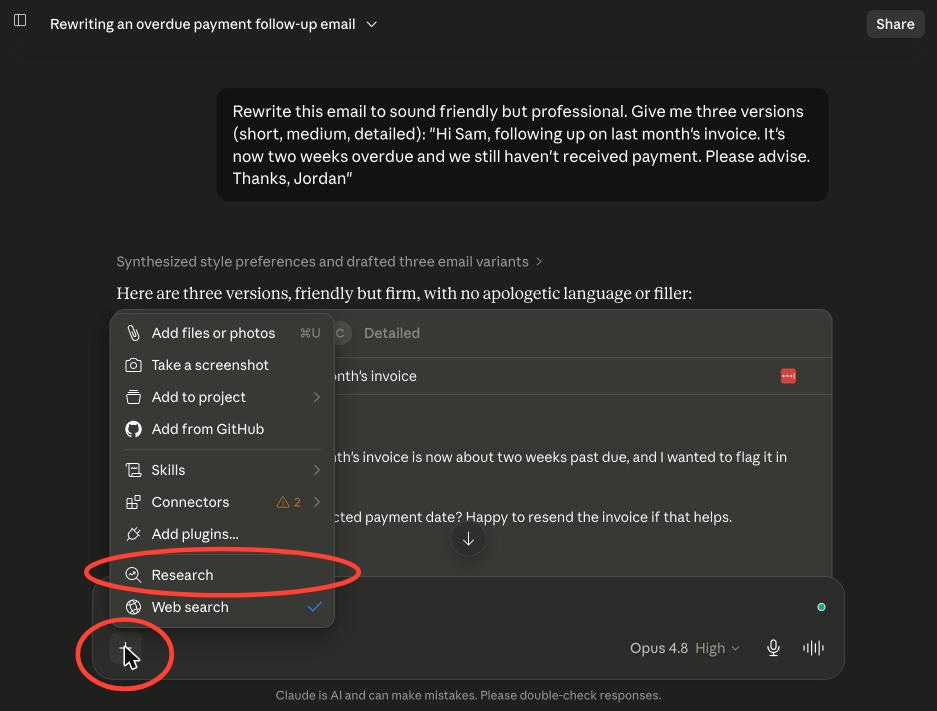
Three of those “+” options change how hard Claude actually works on an answer. File these away. They’re your power tools once you’re rolling:
Web Search. Flip it on when you need current facts. “What’s the weather in Cannes this week.” Live news. Anything that happened after breakfast.
Extended Thinking. For the gnarly stuff that doesn’t need the internet. A messy decision. A bug. Anything where you want it to sit and actually think instead of blurting.
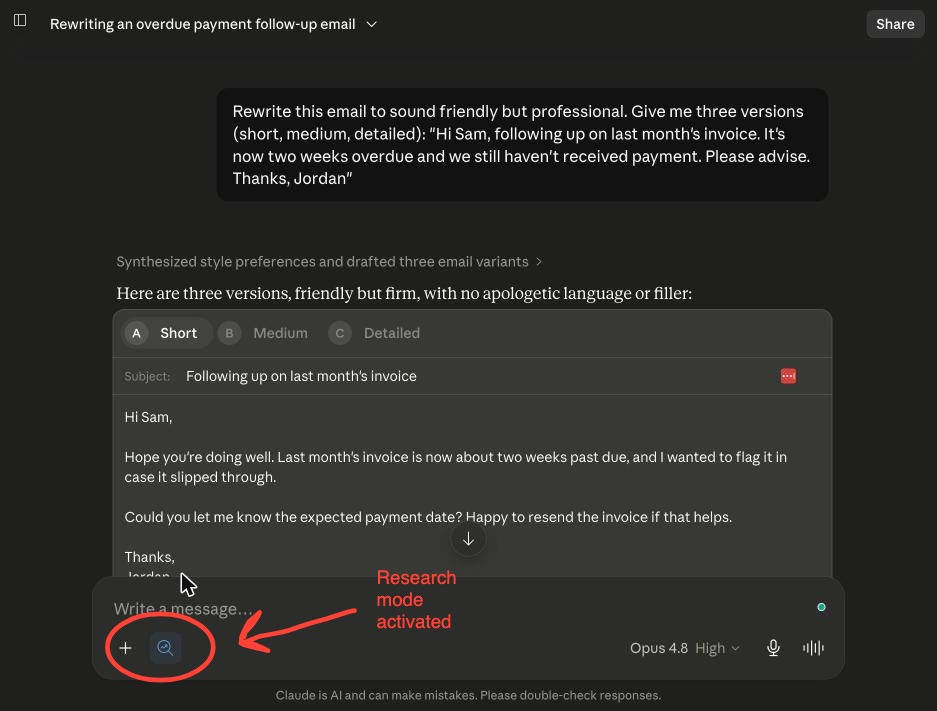
Research. Hit “+” then Research and it goes off, reads a pile of sources, and brings back a real briefing in 1 to 3 minutes. The little Research icon lights up blue next to the “+” so you know it’s heads-down working.
One line to remember it all: thinking is for deliberation, search is for facts, research is for reports.
Drop In a File and Watch It Read
This is the moment most people realize Claude is different. You can hand it a document and it just reads the whole thing.
Try it. Click the “+” button, choose to attach a file, and grab something real off your computer. A PDF lease. A bank statement. A 40-page report you were supposed to read last week. Then ask:
Read this and give me the five things I actually need to know.What should I be worried about?
A few seconds later you’ve got the gist of a document you’d been avoiding for a month. No skimming, no Ctrl+F, no pretending you read it.
This works on more than PDFs. Photos too. Snap a picture of a handwritten whiteboard and ask it to type up the notes. Screenshot a confusing error message and ask what it means. Photograph the inside of your fridge and ask what to cook. It can see, not just read.
Two ground rules. You can attach up to 20 files in one chat, 30 MB each. And don’t upload anything you’d be uncomfortable handing to a company, the same gut check you’d use before pasting something into any online tool.
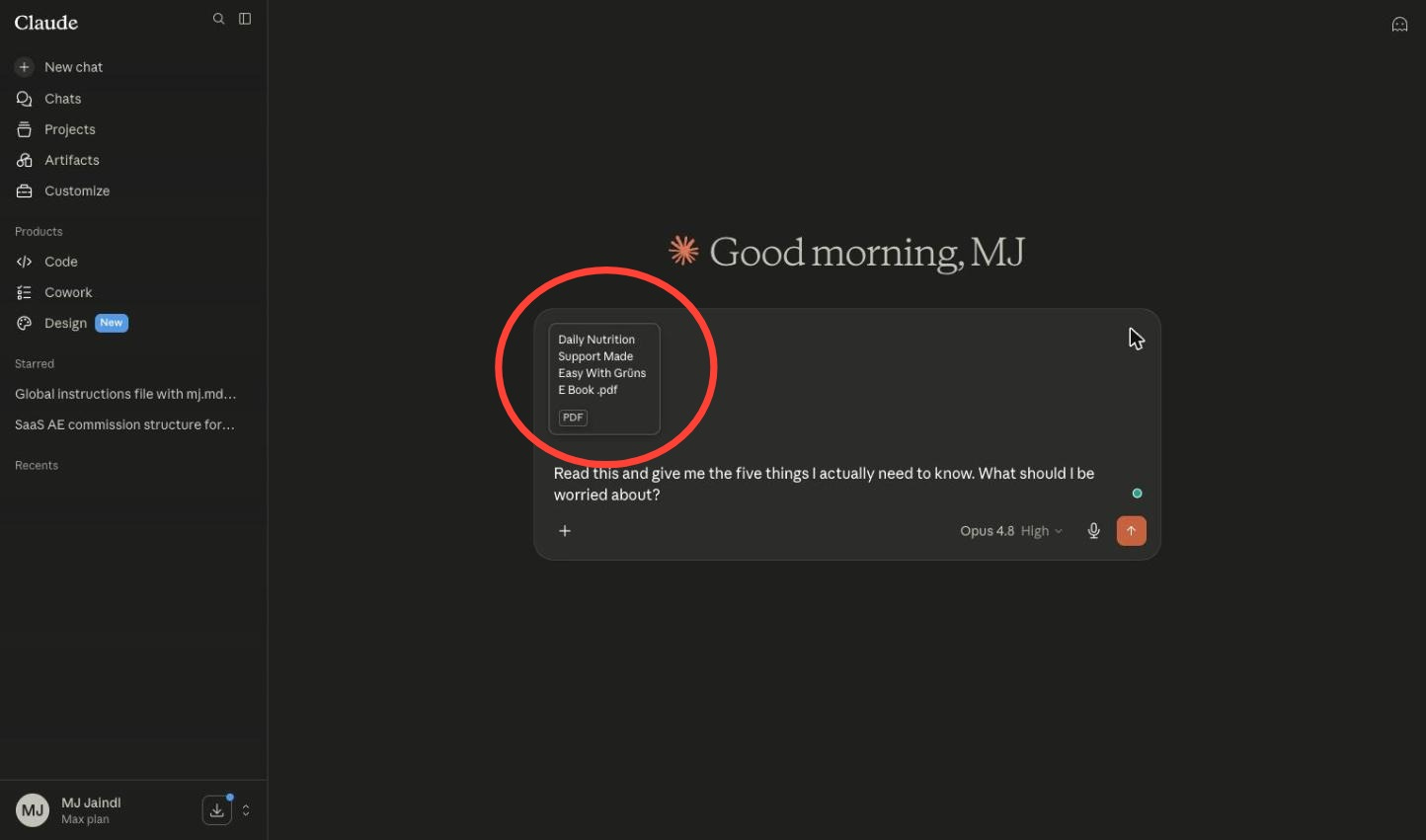
Hand it the whole document.
“Wait, Which Claude Am I Even Talking To?”
Click the model name up top and a few options appear. This is where a lot of people short-circuit. Relax. There’s no wrong answer here.
Think of them as the same Claude on a dial. Smart and patient on one end, quick and breezy on the other.
Claude Sonnet is your daily driver. The best mix of smart and fast, and the one to reach for on almost everything. Drafting an email, summarizing a doc, planning your week. Honestly, you could stop reading this section.
Claude Opus is the big brain. Slower, but it’s who you call for the heavy lifting. Writing a real proposal from scratch. Working through a tangled decision. Anything where you’d happily wait an extra beat for a noticeably better answer.
Claude Haiku is the sprinter. Quick, simple, in and out. Great for fast little tasks where you don’t need it to ponder. “Fix the grammar in this sentence.” “Give me five subject line options.”
Your move for week one: pick Sonnet and leave it there. Only tap Opus when an answer feels a little thin and you want it to think harder. Done. We’ll match models to your plan in issue 3.
Sonnet as your daily driver. Opus for extra horsepower
Feeling like that’s a lot of buttons? It is. And you get to ignore almost all of them today. Type, send, leave it on default. The rest is just sitting there for when you’re ready, and we’ll unlock one piece per issue. No cramming.
A Few Things Nobody Tells You on Day One
Little stuff that trips people up in week one. None of it is hard once someone just says it out loud.
Your chats are saved. Look at the left side of the screen. Every conversation you start lives there in a list, so you can scroll back to that email you wrote on Tuesday. You can rename them too, which sounds boring until you have forty of them.
Start a new chat for a new topic. See the “New chat” button (usually top-left). Use it when you switch subjects. If you keep dinner ideas, work email, and tax questions all in one endless thread, the answers get muddier. One chat, one job. Cleaner every time.
It forgets between chats, for now. Inside one conversation, Claude remembers everything you’ve said. Open a fresh chat tomorrow and it’s a blank slate again. That feels annoying at first. It’s also fixable, and giving Claude a real memory is the entire point of issue 4.
It can be confidently wrong. This is the big one. Claude will sometimes state a “fact,” a quote, or a number that’s just made up, and it’ll sound completely sure of itself. So for anything that matters (a date, a stat, a legal detail, a name) verify it, or turn on web search so it’s working from real sources. Treat it like a brilliant, fast, slightly overconfident assistant. Trust it, then spot-check the things that count.
Free has limits. On the free plan you can send a good number of messages, then it asks you to wait a few hours before sending more. Totally normal. If you start hitting that wall a lot, that’s the signal you’re ready for issue 3, where we sort out plans.
Now Make It Permanent
You’ve felt it work. Time to put Claude somewhere you’ll actually reach for it.
On your computer. Go to claude.com/download and click macOS or Windows. Open the file, install, launch it from your Applications folder (Mac) or Start menu (Windows). Sign in with the same account and your chats are already there waiting. Everything syncs, so the email you wrote on your laptop is on your phone by the time you’ve stood up. (Get the desktop app. Cowork lives here, and that’s a whole issue I can’t wait to write.)
On your phone. Open the App Store or Google Play, search “Claude by Anthropic,” install, sign in. Done. Little bonus: tap the sound-wave icon next to the mic and you can just talk to it out loud. Voice mode is free on mobile, and it’s weirdly fun on a walk. I work through half my ideas talking to it like a coworker who never gets tired of me.
📸 [SCREENSHOT 9 — claude.com/download with the macOS and Windows buttons. Annotation: circle both.] 📸 [SCREENSHOT 10 — The Claude app in the App Store, showing the “Claude by Anthropic” publisher. Annotation: “Make sure it’s the official one.”]
Your Homework
One task. Right now. Before you close the tab and “get to it later,” which we both know means never.
Grab something real off your plate. The reply you keep flinching at. A paragraph that won’t behave. The PDF you’ve been ignoring. “Plan my afternoon around these four things.” Hand it over and send one prompt. If the first answer isn’t quite right, send one follow-up and fix it. That second message is where it clicks for most people.
That’s the whole assignment. Congrats, you’ve officially used AI for real work instead of asking it to write a poem about your dog.
Next week, issue 2, we make every prompt land. The few small habits that turn a decent answer into the exact thing you had in your head. You got a taste of it with the Dana example. We’re going to make that automatic.
See you then.
P.S. What was the first thing you actually asked it? Hit reply and tell me. I read every single one, and the weird ones are my favorite.
Much love ✌️ MJ